
Register a new participant manually
You can manually register a new participant to ensure a smooth registration process for those who missed the deadline or are unable to register through the registration page. This process covers everything from entering participant details to customizing their registration with tickets and activities.
1. Click "Participants"

2. Click "Overview"

3. Click "New participant"

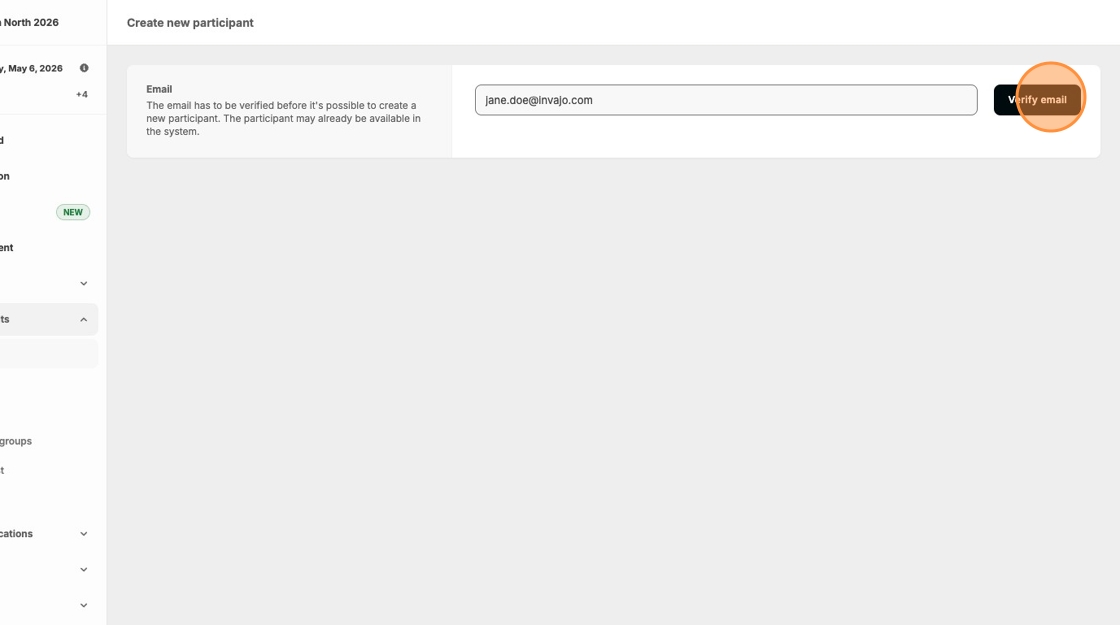
4. Enter the email address of the new participant, then click "Verify email."
5. Enter the new participant’s "First name" and "Last name". If available, you can also add their phone number.
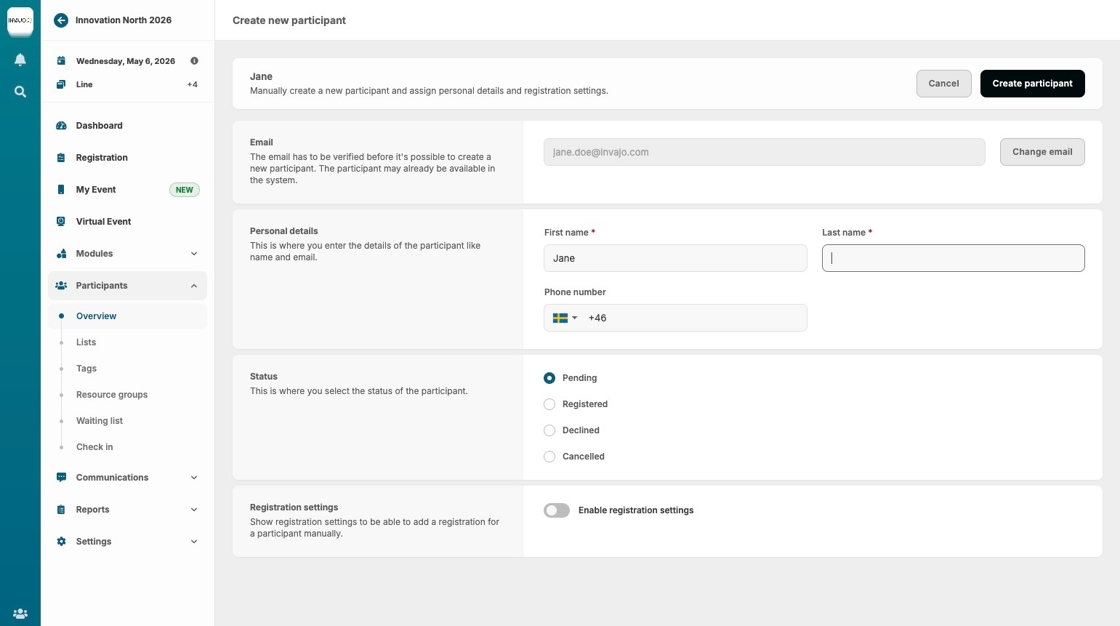
6. Change the status from "Pending" to "Registered".

7. Enable the registration settings by switching the toggle on.

8. Use the dropdown to choose the registration track for the participant.

9. Fill in the questionnaire that appears. You can update your answers later if you don’t have all the information right now.

10. Click "Create participant" to complete the registration.

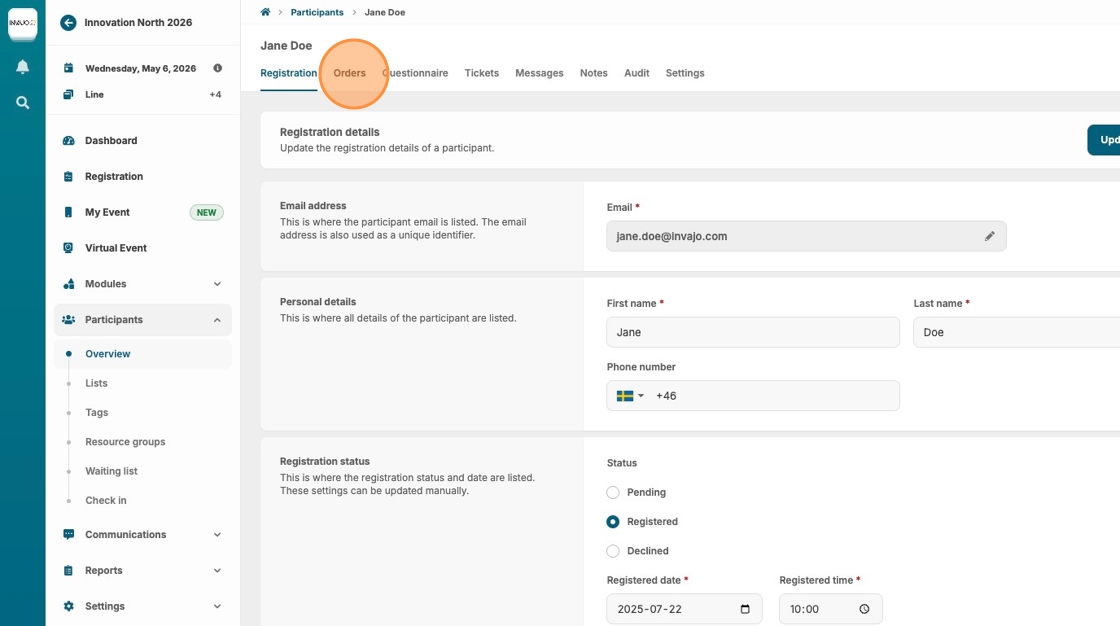
11. You’ll now see the participant listed in the overview. Click their name to view their participant card.

12. Click on "Orders" to add entrance tickets and activities to the participant.
13. Click "+ New order"

14. Click "Add tickets" to make a new order

15. Select the appropriate "Entrance ticket" from the list of available options. The chosen ticket will be moved to the right side.

16. To add "Activities," select them from the list provided here.

17. Once you’ve completed your selections, click "Add tickets."

18. Click "Create order"

19. To view more details and send the confirmation email, click on the ordernumber.

20. Remember that for paid events, you also need to handle the payment manually, either by card or invoice. Then click "Send confirmation" to complete the manual registration and notify the new participant.
